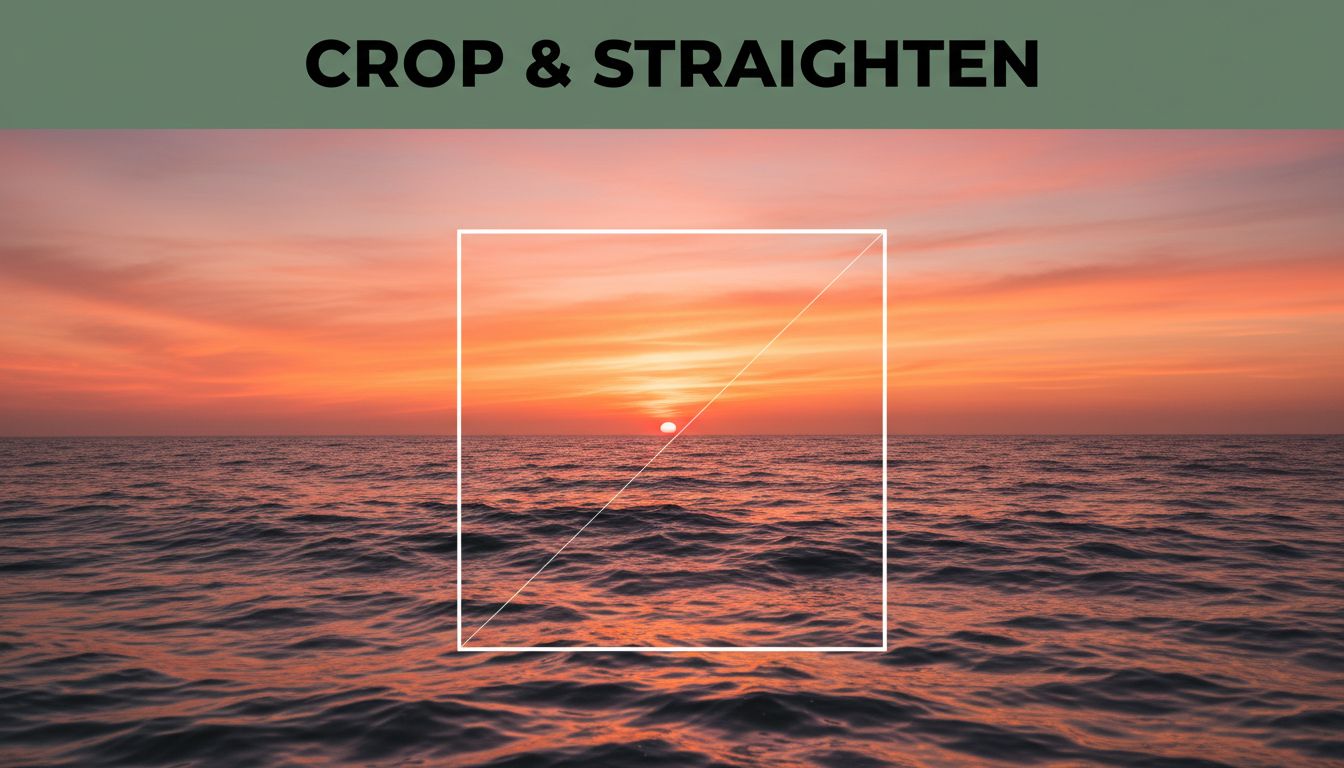
You snap a stunning sunset over the ocean. The colors pop, waves crash just right. But then you notice the horizon tilts like a drunk sailor. Worse, random branches crowd the edges, pulling eyes away from the glow. That one flaw turns your keeper into a discard.
Cropping fixes this mess. It chops out distractions and zeros in on what matters. Straightening levels the playing field so shots feel balanced and pro. You get eye-grabbing posts for Instagram or crisp prints for the wall. Because poor framing kills impact, these edits boost every photo.
This guide shows how to crop and straighten photos correctly. You’ll learn basics first, like grids and ratios that guide your eye. Then, step-by-step in Lightroom, Photoshop, and free apps like Snapseed. We cover pitfalls to skip, plus 2026 AI tricks that speed things up. By the end, you’ll edit with confidence and make your shots shine.
Master the Basics Before You Start Editing
Get composition right before heavy edits. Shoot with grids on your camera or phone. They help align horizons and leave space around subjects. This saves time later. Because sloppy starts lead to frustration, strong foundations pay off.
Think rule of thirds. Divide the frame into a tic-tac-toe grid. Place key elements at line intersections. Centered subjects often feel static. Off-center ones draw the eye naturally. For example, position a person’s eyes at the top-right cross. The image flows better.
Leave breathing room. Shoot wider than needed. Crop later to tighten focus. Match aspect ratios to your goal. Square works for posts. Vertical suits stories. Always keep originals safe with non-destructive edits.
Leading lines guide attention too. Roads or fences should point to your subject. Not off into nothing. These habits build pro instincts fast.
Why the Rule of Thirds Works Every Time
Picture your dog centered in a park shot. It looks flat, like a mugshot. Now shift Fido to a grid intersection. Suddenly, grass and trees frame him dynamically.
Visualize the grid easily. Turn on your camera’s overlay. Two horizontal and two vertical lines split the view. Horizons sit on upper or lower lines for balance. Subjects straddle verticals.
This setup mimics how eyes scan. We don’t stare dead center. For more on this, check Icon Photography School’s rule of thirds guide. Results feel alive, not stiff.
Pick the Right Aspect Ratio for Your Goal
Wrong ratios ruin plans. Instagram loves 1:1 squares. Stories need 9:16 vertical. Prints often use 4:6 or 5:7.
| Goal | Aspect Ratio | Tip |
|---|---|---|
| Instagram post | 1:1 | Center subject, even edges |
| Stories/Reels | 9:16 | Tall crops, headroom top |
| Prints | 4:6 or 5:7 | Leave borders for framing |
| Web banners | 16:9 | Wide landscapes fit best |
Pick first, then crop. Avoid chopping feet or sky. Test previews to confirm.
Step-by-Step Guides for Top Tools
Tools make edits simple. Start non-destructive to tweak freely. Lightroom suits batches. Photoshop handles precision. Free apps like Snapseed work anywhere.
Keyboard shortcuts speed you up. Overlays show grids live. AI now auto-suggests in 2026 versions.
Crop and Straighten Effortlessly in Lightroom
Open your photo in Lightroom. Hit R for the Crop tool. Drag corners to frame tight. Gray areas fade out.
Straighten next. Grab the angled line icon. Drag along the horizon. It auto-rotates. Or use the Auto button for quick fixes.
Drop down aspect ratios. Lock to 1:1 or freeform. Toggle overlays with O key. Rule of thirds or grids appear.
For buildings, tap Transform. AI fixes perspective. Hit Done. Changes save without harming originals. See Adobe’s Lightroom Classic crop guide for details.
Generative Expand fills edges if you push out. Perfect for social tweaks.
Precise Edits Using Photoshop
Launch Photoshop. Press C for Crop tool. Drag a box over your focus area. Hold the curved arrow outside to rotate straight.
Uncheck Delete Cropped Pixels. This keeps flexibility. For horizons, select Straighten tool from the toolbar. Click and drag along the line.
Gaps fill with Content-Aware. AI matches surroundings smartly. Press Enter to apply.
Perspective needs? Use Warp or Lens Correction. Batch via Actions for multiples. Adobe’s Photoshop crop tutorial covers tilted shots well.
Edits stay layered. Undo anytime.
Free and Easy with Snapseed or Photopea
Snapseed shines on mobile. Open a photo. Tap Tools, then Crop. Pinch to resize. Swipe the dial to rotate level.
Tap the grid icon. It snaps to straight. Check Format for ratios like 1:1. Apply and save a copy.
Photopea mimics Photoshop free online. C key crops. Straighten like PS. No install needed.
Google’s Snapseed Crop help explains the dial best. One-tap autos handle most jobs.
Avoid These Sneaky Mistakes That Wreck Your Shots
Rookies crop too aggressive. Pros leave space. Over-straighten and faces distort. Check previews always.
Wrong lines jar viewers. Horizons half-cut look odd. Fix with rules from basics.
Spot errors early. Zoom out after edits. Compare before and after.
Cropping Too Close and Losing Key Details
You trim tight on a couple’s portrait. Hands vanish. Or sky disappears from landscapes. Eyes miss context.
Leave a buffer. Ten percent extra room prevents this. Prints need more for cuts. Zoom previews reveal gaps.
Ignoring Composition Rules Like Leading Lines
Rails lead to empty sky. Not the bride. Viewers get confused.
Recrop so paths point to stars. Rule of thirds helps place them right. Test by squinting. Flow should guide naturally.
Embrace 2026 Trends for Next-Level Results
AI leads now. Lightroom’s Auto Perspective detects horizons instantly. Generative Expand fills crops seamlessly.
Photoshop Neural Filters straighten architecture with one tap. Content-Aware grows images organically.
Snapseed’s Magic Crop suggests and expands. All prioritize natural looks over perfection. Subtle textures stay real.
New overlays include golden ratio and diagonals. Batch edits handle folders fast. Mobile stacks optimize for 9:16 videos.
Experiment freely. Non-destructive means zero risk. Your social feeds stand out crisp and balanced.
Conclusion
Master rule of thirds and ratios first. Follow tool steps in Lightroom or Snapseed. Dodge tight crops and bad lines. Tap 2026 AI for speed.
Grab a photo now. Download Lightroom’s free trial or fire up Snapseed. Edit one shot today.
Share your before and after in comments. Practice builds pro eyes fast. Correct cropping and straightening unlocks better photos every time. What will you fix first?